
SNMP card setup guide
From plugging in the card to receiving your first email alert. Allow about 10 minutes. Works for the USSSNMP (single phase) and UTTSNMP (three phase) cards in all RackPower online UPS.
Fit the card and plug in the network cable
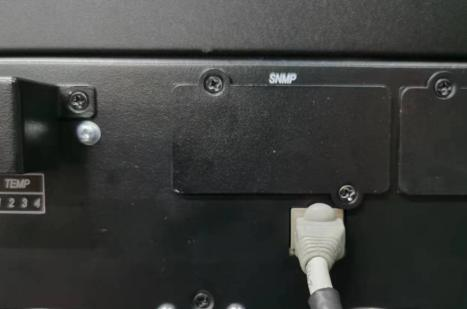
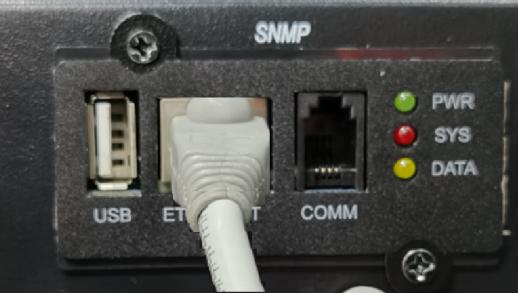
If the card was fitted at the factory, just plug the network cable into the card's ETHERNET port and go to step 2.
- Undo the two screws on the intelligent slot cover and remove the cover.
- Slide the card all the way in along the slot's guide rails.
- Tighten the screws at both ends of the card.
- Plug a network cable into the ETHERNET port and connect it to your network switch.
- Check the PWR light on the card is on.
Find the card with IPsearch
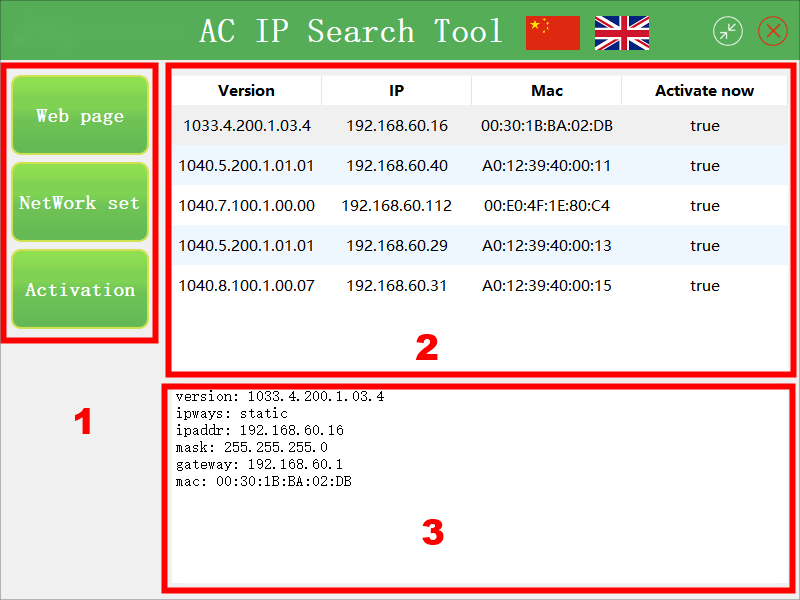
Open IPsearch on a Windows PC connected to the same network. It searches automatically and lists every RackPower SNMP card it finds, with its IP address and MAC address. The list refreshes every 15 seconds.
Give the card an IP address
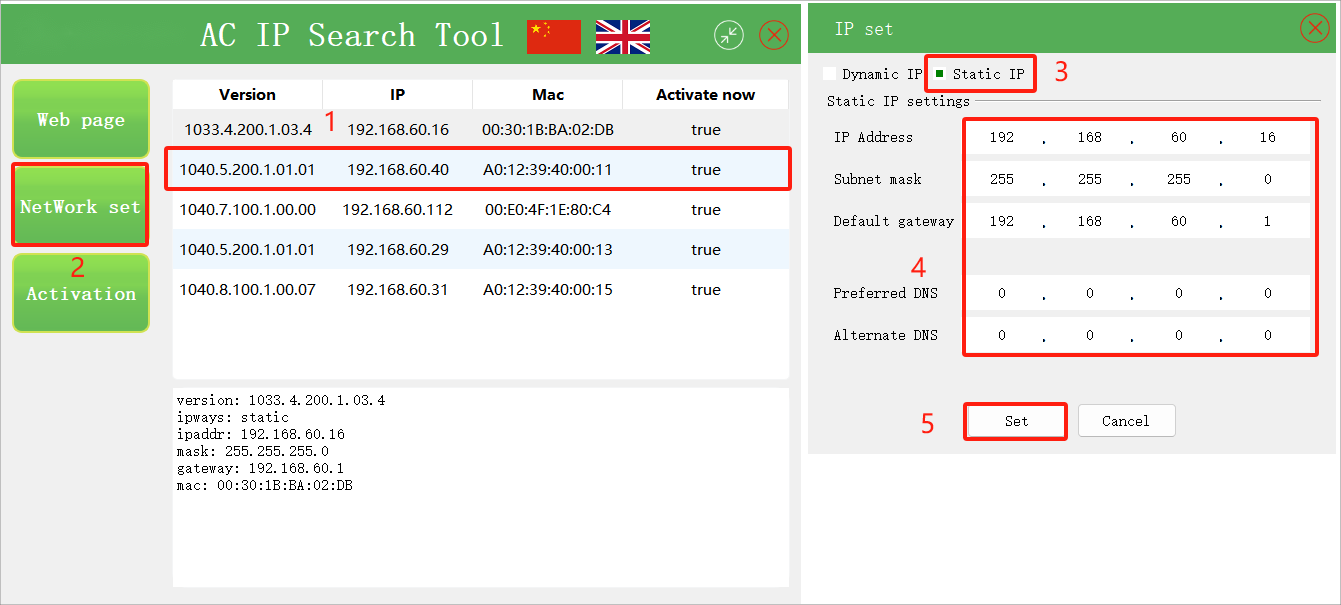
Choose automatic (DHCP) if your network hands out addresses, or static if you want the card to keep the same address. For UPS monitoring, a static address is usually best.
Automatic (DHCP)
- Click the card in the list.
- Click Network Set.
- Choose Obtain IP, then click Set.
Static IP
- Click the card in the list.
- Click Network Set and choose Static IP.
- Enter the IP address, subnet mask and gateway your IT team has given you, then click Set.
Log in and change the password
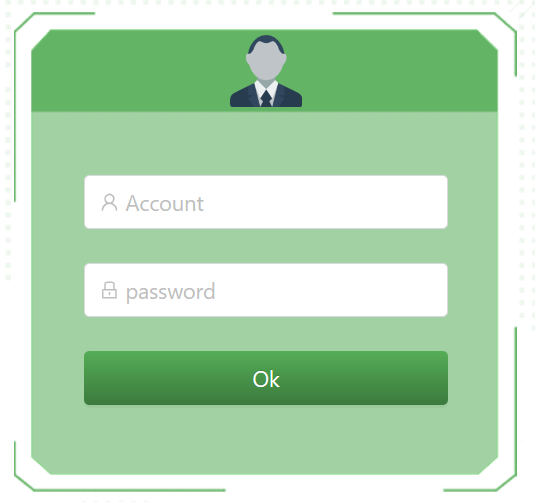
- In IPsearch, click the card, then click Web Page. Or type the card's IP address into your web browser.
- Log in with the default administrator account: admin, password 123456.
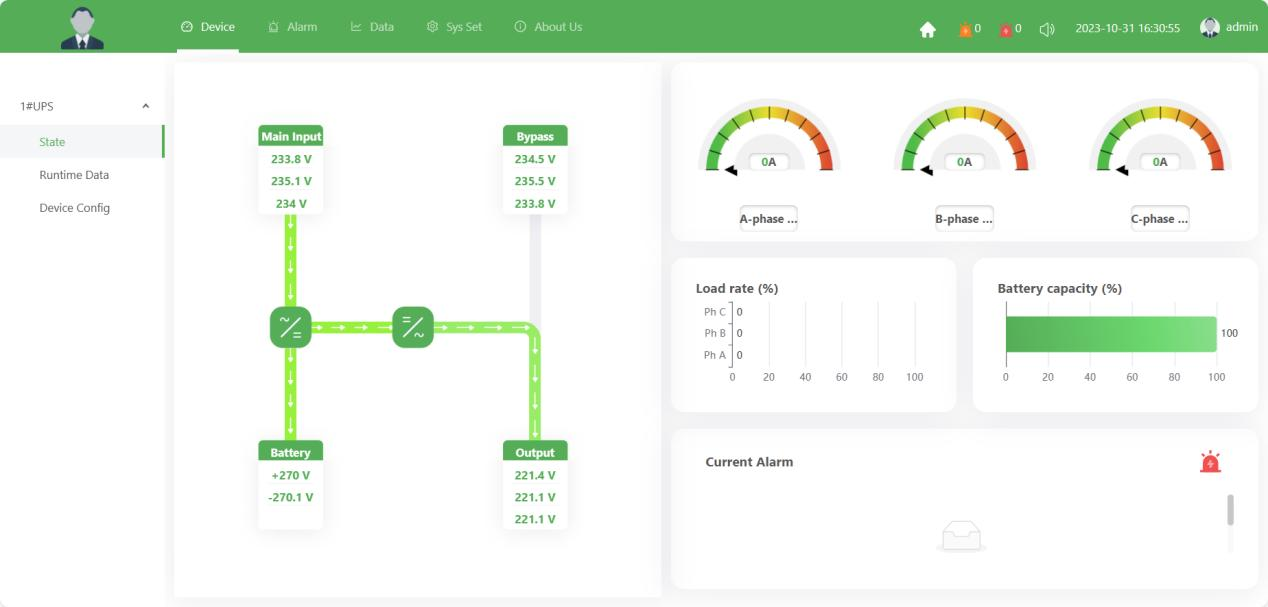
- Click Sys Set in the top menu, open User Management and change the password straight away.
Set the card's clock
Alarms, email alerts and schedules all use the card's clock, so set it before anything else.
- Click Sys Set, then Time Set.
- Choose your time zone and click Sync Local Datetime to copy the time from your computer.
Link the card to your UPS
Cards supplied fitted to a RackPower UPS are already set up. If the web page shows a UPS communication failure alarm, tell the card which UPS it's in:
- Click Sys Set, open Device and click Add.
- Fill in the settings below, click OK, then Apply.
- Refresh the page. If the communication failure alarm has gone, the card is talking to the UPS.
| Setting | Choose |
|---|---|
| Equipment type | UPS |
| Protocol | Megtec for single phase UPS (USS models). TT for three phase 10–40kVA UPS (TT models) |
| Port type / serial port | Serial port / Serial port A |
| Device number, Modbus address | Any unused number (address 1–247) |
| Baud rate, Modbus mode | The same as the UPS's communication settings (see the UPS user manual) |
Set up email alerts
- Click Sys Set, then Email Settings.
- Enter the settings for your email provider (below), the account the card sends from, and who should receive alerts.
- Click Send test email and check it arrives.
- Choose which events send an email in Alarm Settings. Level 3 is a general (yellow) alarm; level 4 and above is a serious (red) alarm.
| Provider | Server | Port | Connection | Password to use |
|---|---|---|---|---|
| Gmail | smtp.gmail.com | 587 | TLS | A Google app password (needs 2-step verification) |
| Outlook.com | smtp-mail.outlook.com | 587 | TLS | The mailbox password, with POP and IMAP turned on in Outlook settings |
| Your company's server | Ask your IT team for the SMTP server, port and connection type | |||
Add automatic shutdown and monitoring
The card can now tell your servers to shut down safely before the batteries run flat.
| To protect | Install |
|---|---|
| Windows PCs and servers | ClientMate on each machine, pointed at the card's IP address |
| Linux servers, VMware ESXi | PowerGuard, added as an SNMP device using the card's IP address |
| Network management system or BMS | Turn on SNMP, Modbus TCP or MQTT under Sys Set. Use the RackPower MIB file for SNMP |
All software is free from rackpower.co.nz/ups-software.
Optional extras
Temperature and humidity sensor
- Plug the sensor's IN port into the card's COMM port with the supplied cable. Check the sensor's light is green.
- Click Sys Set, open Device, click Add and choose the sensor. Make sure the Modbus address matches the address set on the sensor's switches, then click Confirm and Apply.
- Readings appear under Device, where you can set high and low alarm limits.
Scheduled UPS on/off
The card can turn the UPS output off and on at set times, for example to power down equipment overnight. Because this switches the load off, we send the guide on request.
Windows shutdown without software
If you can't install ClientMate, the card can shut Windows down over SSH. This needs changes to Windows settings, so we send the guide on request.
If something isn't working
- IPsearch can't find the card
- Check the PWR light is on, the network cable is plugged into ETHERNET (not COMM), and the PC is on the same network. Try allowing IPsearch through the Windows firewall.
- The web page won't open
- Your PC and the card must be on the same network range. Check your PC's address in Control Panel → Network and Internet → Network Connections, or give the card an address in your PC's range with IPsearch.
- "UPS communication failure"
- Check the protocol, Modbus address, baud rate and mode in step 6 match the UPS.
- No email alerts
- Check the server, port and connection type in the table in step 7, and that the card's clock is right (step 5). Gmail needs an app password. Some company networks block email from devices.
- Alarm times are wrong
- Set the card's clock in step 5.
Still stuck? Call 0800 452 140 or email [email protected] and we'll help you through it.
Downloads for this guide
Shutdown software (ClientMate and PowerGuard) is on the UPS software page.
Prefer to watch?
A short setup video is coming soon. In the meantime, call 0800 452 140 and we'll talk you through it.